
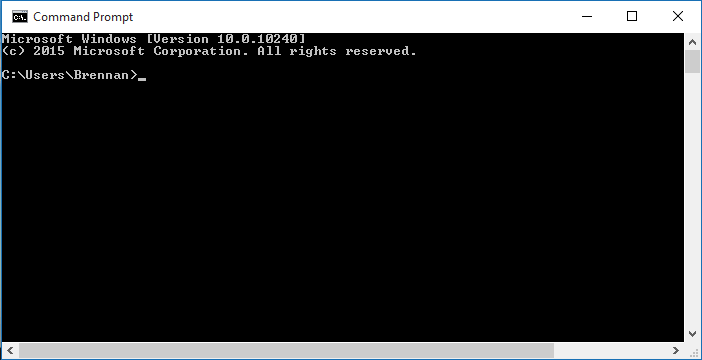
Command Prompt is a built-in software integrated into the Windows operating system to install and navigate through the file directory with basic commands. It’s used to execute entered commands. Most of those commands automate tasks via scripts and batch files, perform advanced administrative functions, and troubleshoot or solve certain kinds of Windows issues.
What is the Command Prompt?
Here’s a brief explanation of what the Command Prompt is all about: Commands written in the “Scripting” or “Command Language” consist of only one or more characters, are usually one or more lines long, and start with a space. A command starts a copy of the current file or directory, checks to see if it already exists, and if not, copies the file(s) or directory to the clipboard, the command ends the copy of the current file or directory back to the current working directory. It does not copy the clipboard copy or create a new file, directory, or folder. Commands that move the cursor within the current document (with the mouse) are called “move and screen” commands.
How to open a Command Prompt
Click on the Windows icon in the lower-left corner of the Start button. Click the Run button. Click All Programs. Click Command Prompt. Type the following to open a Command Prompt: “cmd.” –command How to delete a Command Prompt: Type “cmd.” Click the Delete icon. How to install Command Prompt: Type “Install Command Prompt.” Click the Install button. Install the downloaded file and install a basic version of the Command Prompt. How to change an option within Command Prompt: Type “cmd.” Click the Edit option. Type the following, and then hit the OK button: BIND There are many built-in commands to access core Windows functions. You can learn many of them with the Windows Command Prompt.
Tools You Need
Tools: For the tools that you will need is Git Node.JS NPM
Git is the most commonly used version control system. Git tracks the changes you make to files, so you have a record of what has been done, and you can revert to specific versions should you ever need to. Git also makes collaboration easier, allowing changes by multiple people to all to be merged into one source. What Is Git & Why Should You Use It?
Git is also used for copying and cloning your repositories (Projects) to GitHub. To install git head to their download page Git.Com install and run the program. Now you have git you can run git in git bash. More Git Commands can be found here Git-Commands.
Node.js is an open-source, cross-platform, back-end JavaScript runtime environment that runs on the V8 engine and executes JavaScript code outside a web browser, Node js is primarily used for non-blocking, event-driven servers, due to its single-threaded nature. It’s used for traditional websites and back-end API services but was designed with real-time, push-based architectures in mind Wikipedia, Why-Should-I-Use-Node.JS.
npm is the world’s largest software registry. Open-source developers from every continent use npm to share and borrow packages, organizations use npm to manage private development as well. npm consists of three distinct components: the website, the Command Line Interface (CLI), the registry About npm.
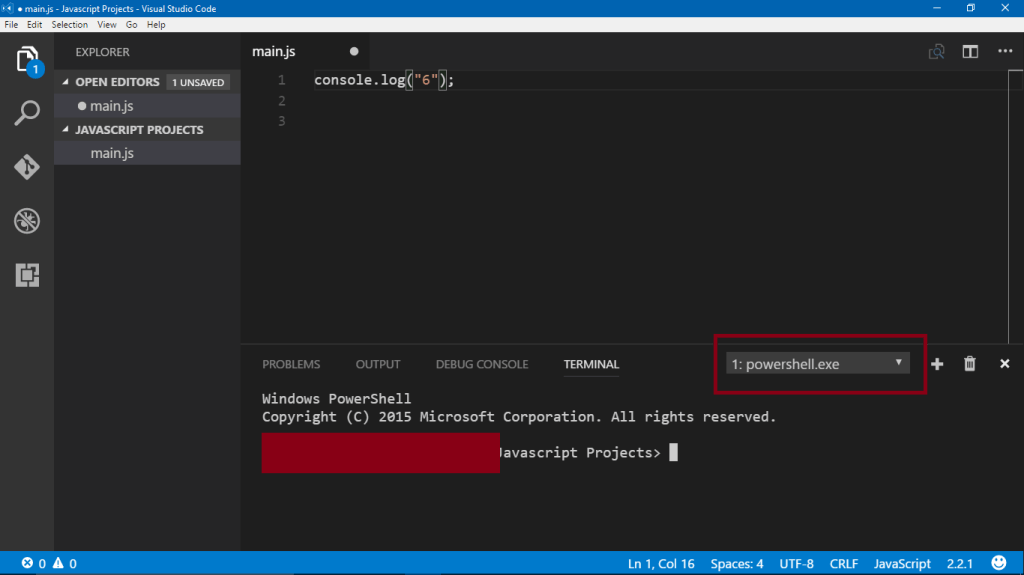
VSCode This is not a program that is installed in the Command Prompt but this application is used for coding in
14 programming languages. this also has a built-in Command Prompt used for a whole bunch of things.
Focusing on a Specific Folder
By default, the command prompt opens in the Recycle Bin folder, you can choose a different folder to browse. You can either make the directory’s location always be on the first line, or add it to the end of your command. To change the command prompt folder location, right-click in the Recycle Bin folder or navigate to the location of your choice, right-click the folder, and select Properties. Find the Recycle Bin section and scroll down until you find Command Prompt in the System category. If you want to add the command to the end of the line, find the line number of your command and add the modifier -q. -q refers to the command as a query.
Changing the Current Directory
You might think you need to do that every time you open the Windows command prompt, but you can do that before you type in commands using ‘cd’. For example, type in ‘cd C:’ to change to the current directory. Also, if you’re on a system that doesn’t have a proper directory hierarchy, you can just type ‘cd \’. For example, if you’re in the C:\ drive and you want to change the current directory to a different one, you can type ‘cd C:\’ and the command will take you to the appropriate location. You can then type in the folder path you want to work in. When you type ‘cd’ instead of ‘cd path’ you’re typing the path (instead of the directory) and pressing ENTER to enter the folder. The ‘cat’ command is also available on Windows.
Moving Around in Windows Explorer
In Windows Explorer (Go To File) You can easily move through the file directory and within the folder structure. Move down to the bottom directory of a folder or into the address bar and hit cmd + L. This moves you to the next directory to access. Text Editors, Sometimes it’s faster to edit text on the spot or click to quickly grab a command from a text editor instead of navigating through the file system. In Microsoft Word or any Windows text editor, you can find a Text Box option in the Status Bar or the Application tab. Text boxes allow you to enter a file path for a file and have it displayed in your document. Installing and Setting Up Software To install Windows programs on your computer, download them to an ISO file or even to an image on the Internet.
Why You Should Use the Command Prompt
The Windows Command Prompt can handle a lot of functions, but some require other commands to execute. The “add” command allows you to add data to a file, and the “delete” command allows you to remove data from a file. The “add -x” command launches the file that contains this data. The “remove” command will ensure that a file is removed from a location and the destination directory. These are two examples of very simple tasks that you can accomplish in the command prompt. It’s also important to note that the Command Prompt can easily be customized. The following are all built-in commands that can be easily customized or built into your own set of customized commands.
Conclusion
The Linux command line can be intimidating at first. But when you get it down and learn how to do things the correct way, the command line can save you time and provide a better user experience. It takes a little effort, but it can make a huge difference in how you spend your day at work or in your free time. This is a helpful tool that all developers use for websites scripting and much more with the mand prompt.
<CodeHarder365>
 Brothers Who Code